Creating and linking an SSH key
In this document we will learn how to create an SSH Key with RStudio and how to link it to a GitHub account. This way you can safely authenticate when pushing changes to your repository.
This document starts from the assumption that you have a temporary VSC account, which provides you access to Open OnDemand and therefore to RStudio, and a GitHub account that you want to connect to. Most of the instructions are also valid for a local RStudio installation and to connect to any other platform that accepts SSH authentication.
VSC-specific instructions
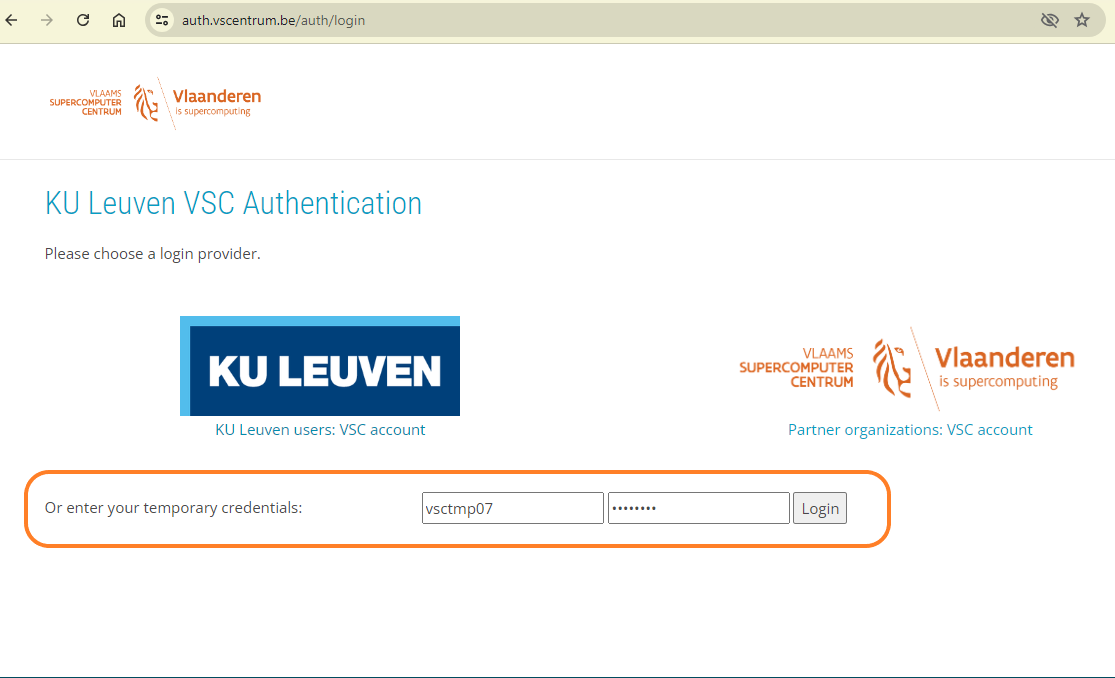
In order to access RStudio in Open OnDemand, go to https://ondemand.hpc.kuleuven.be, which will redirect you to the VSC Login Page. Here you should enter your temporary credentials (username and password) in the appropriate input fields:
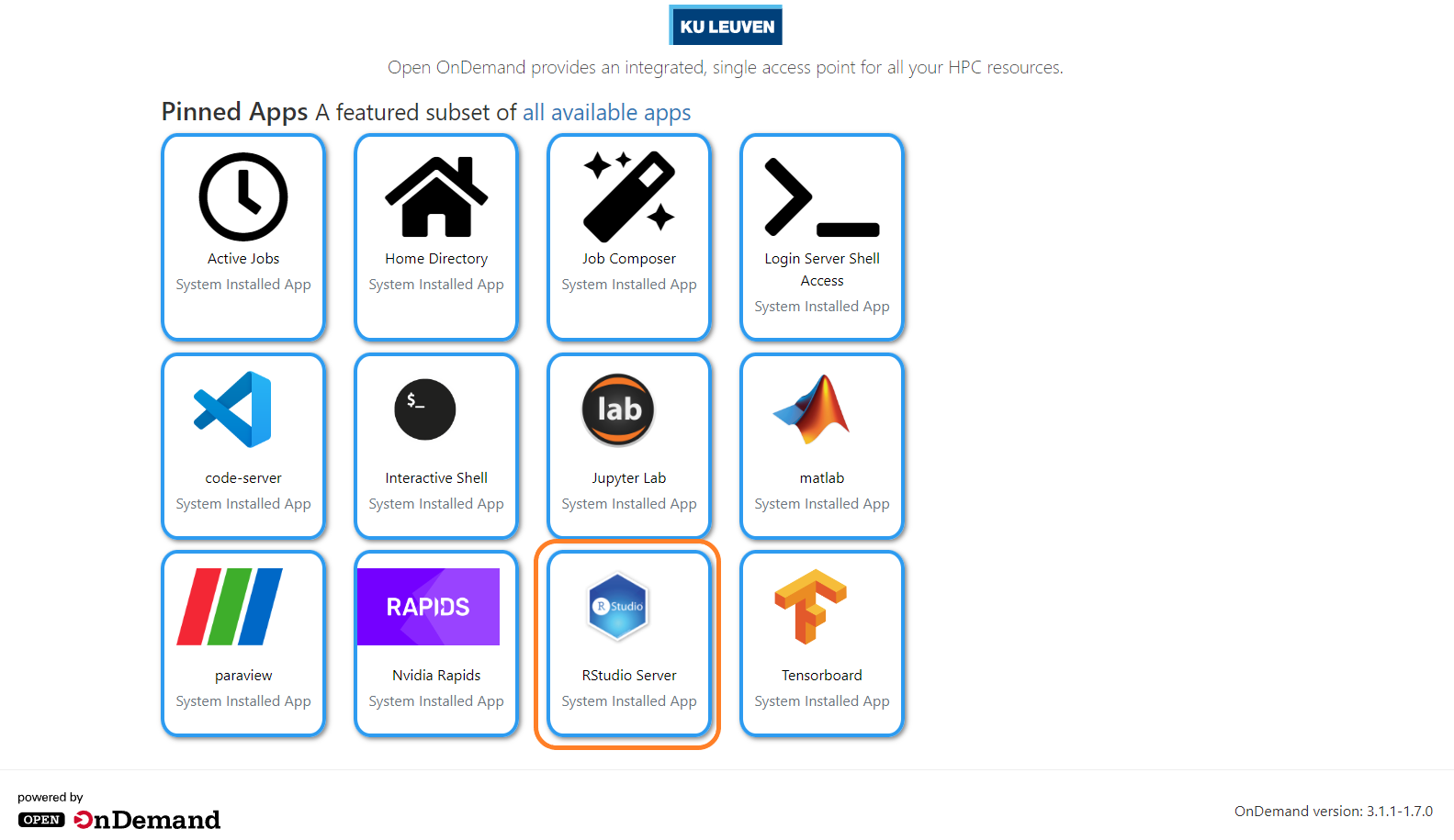
Then select RStudio Server from the pinned apps:
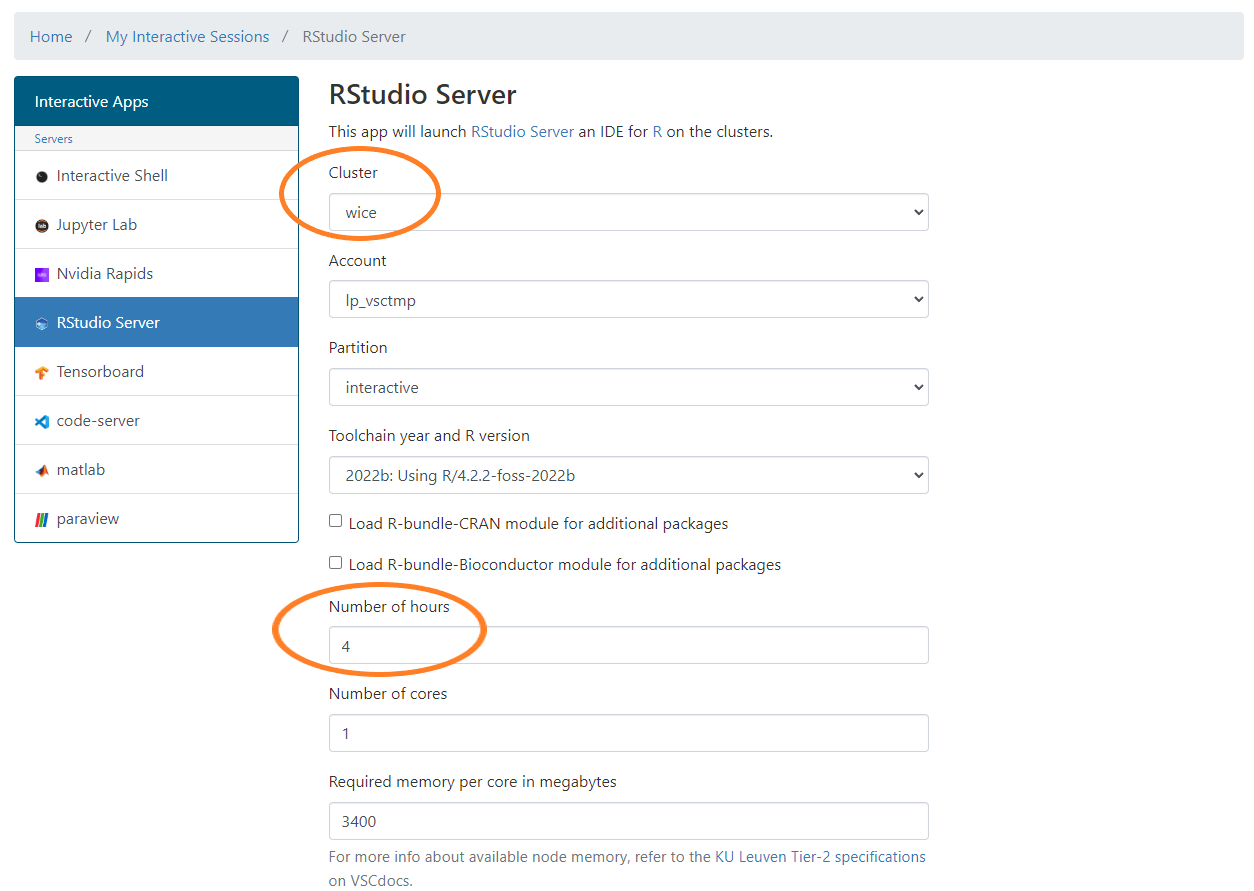
This will take you to a form to request a job: select the “wice” cluster and a number of hours that includes the duration of the course, so that you don’t need to request a new job later during the course. The rest of the values can be left on their default: “lp_vsctmp” account, “interactive” partition…
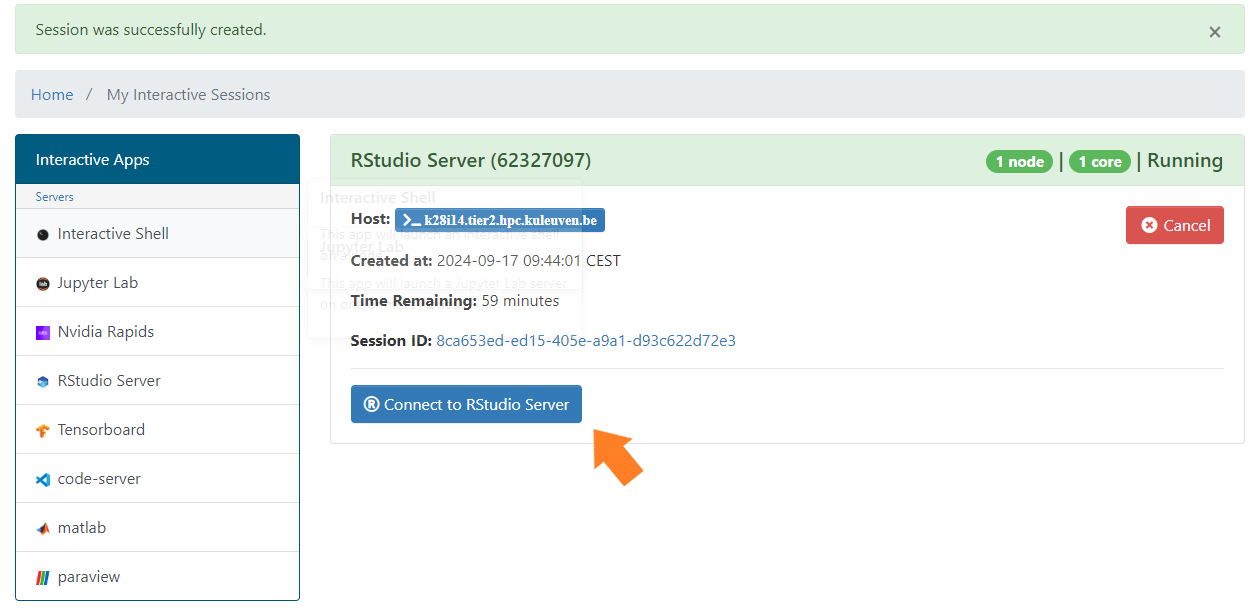
Wait for the job to start, and once it’s ready, click on “Connect to RStudio Server”, which will take you to RStudio.
From the RStudio side
In RStudio, go to “Tools” > “Global Options”, and in the pop-up window go to the “Git/SVN” tab from the left sidebar.
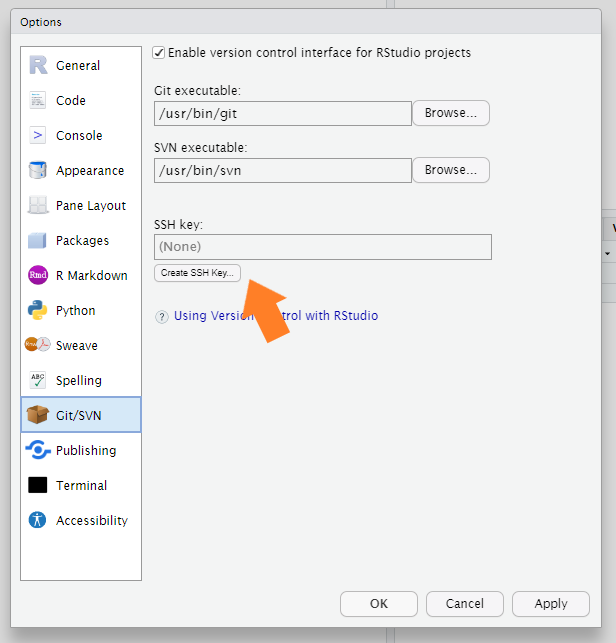
Under the “SSK key” field, which should be empty, click on “Create SSH Key…”. This will open a new pop-up window showing the path to where the SSH key will be created and boxes to input an optional passphrase and confirm it. Please provide a passphrase: this is what you will have to input when you confirm actions that require the SSH key. Also make sure to select the SSH key type “ED25519” if it is not selected already.
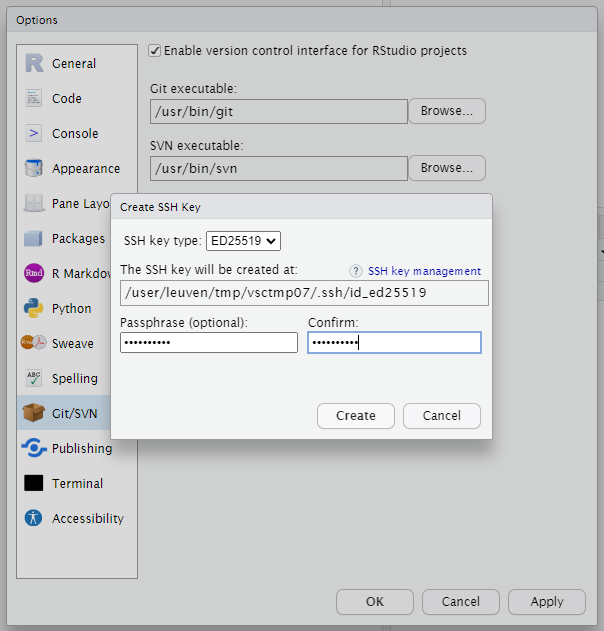
Clicking on “Create” will result in a window confirming it has been created, the paths to the private and public keys, the fingerprint and its randomart. You may just close the window.
You have now an SSH key pair that you can use to connect RStudio in HPC with GitHub, congratulations! The next step is to give the public key to GitHub, which is then used to decode the private key when RStudio sends instructions to it. Now that you have created the key, you can always retrieve the public key from the same window used to create it:
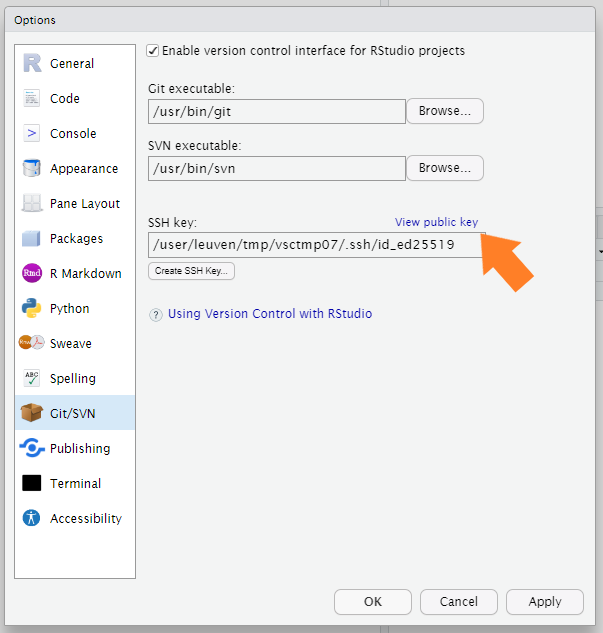
When you do close the “Options” window, don’t forget to click on “Apply” first!
From the GitHub side
In github.com, go to your Settings page (by selecting it in the menu that stems from your profile picture, on the top right corner), and once there select “SSH and GPG keys” from the left side bar (the “Access” section). On the right side you can then click on “New SSH key”:

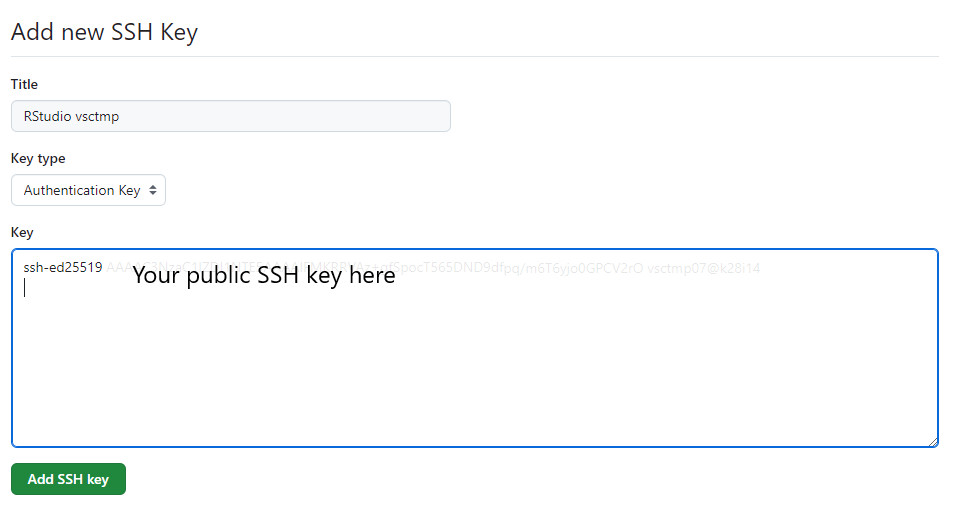
This will take you to a small form to input a “Title” (a recognizable name that distinguish this key from other keys you may add, e.g. to another RStudio installation) and the “Key” itself. In that last field, paste the public key you can copy from RStudio. The, click on “Add SSH Key”. Because I use the GitHub App for 2-Factor Authentication, I have to authorize this action via that app. You may have another way to provide authorization.
Once the key has been added it will show up in the list of authentication keys, and you are set :)
For more information on connecting to GitHub with SSH, please read the documentation.
Clone a repository/project with SSH
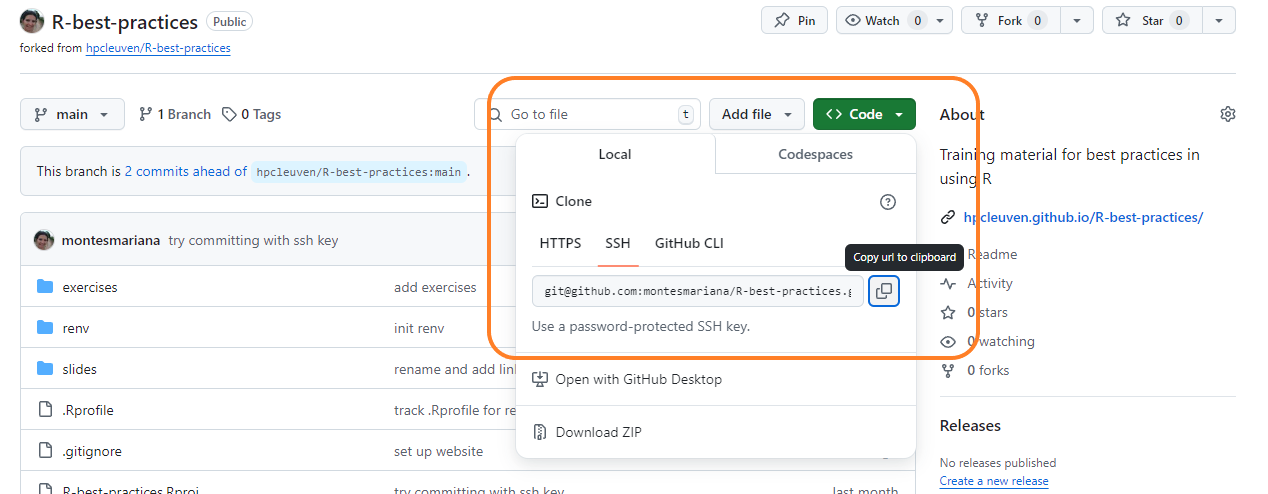
When you want to clone an R project from GitHub, you may use the SSH url. You can obtain it from the appropriate tab in the “Code” dropdown of a repository on GitHub. Remember to clone your fork!
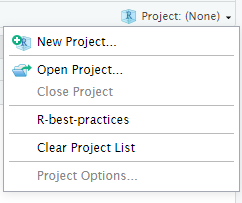
How do you create a project by cloning a repository? On the top right corner of R Studio, there is a small dropdown that can be used to open or create a new project.
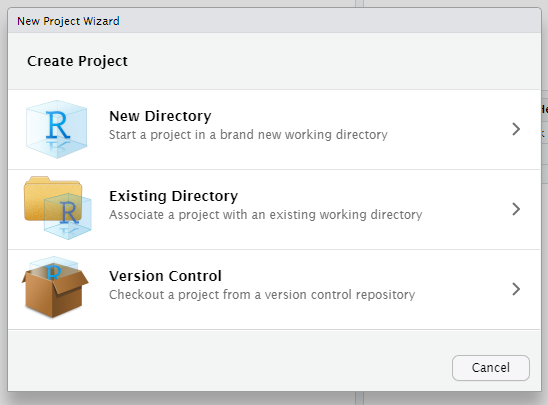
Clicking on “New Project” will take you to the “New Project Wizard”, from which you can create one from scratch, or from an existing directory, or “from Version Control”. Select the last option, and then “Git” as the Version Control tool.
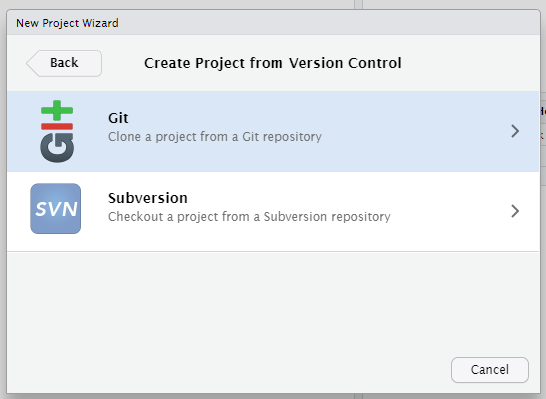
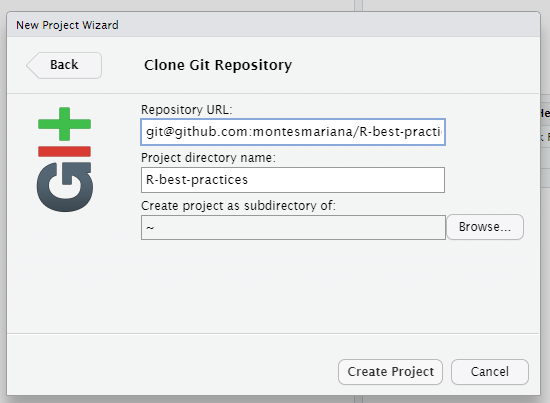
Then when you create a new project by cloning a repository, that is the URL you provide (instead of the “https” one):
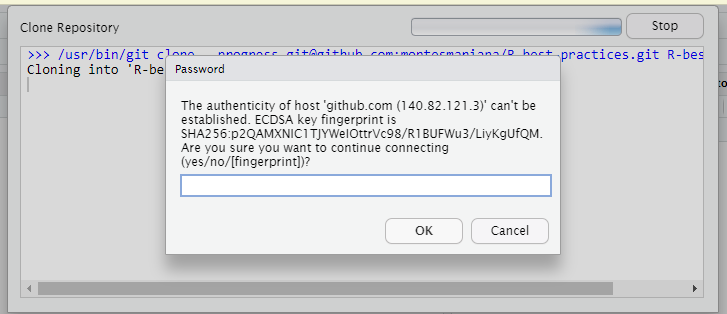
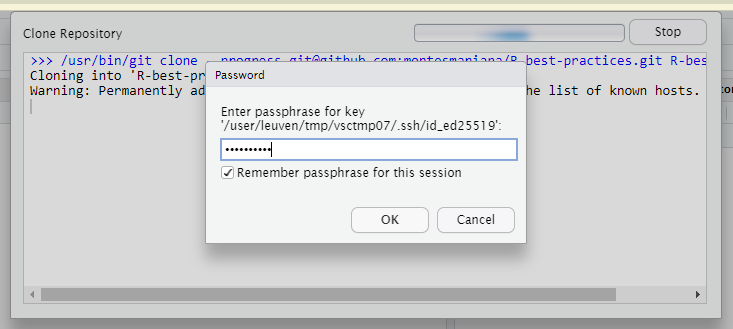
The first time you use the SSH key, you will need to confirm that you accept the connection. Other than that, normally you will just need to input the passphrase:
Good luck!